Desktop Controls for Mail or Jail
Mouse-and-keyboard bindings for the fastest ID verification and cleanest thief arrests on PC.
Desktop is the reference platform for Mail or Jail on Roblox. Delivery Day Studios ships the experience on Desktop, Mobile, Tablet, and Console, but PC players get the widest camera control and the quickest ID panel navigation—two advantages that matter when verification mistakes feed directly into the FIRED screen. This page documents the desktop control loop so you can unload trucks, approve legitimate customers, reject disguised thieves, and survive random events without fighting inputs.
If you have not read the controls hub yet, skim it for the shared shift phases. Return here for binding-level detail and PC-specific habits that pair with Shift 1 tips and the full walkthrough.
Default Roblox PC movement
Mail or Jail inherits standard Roblox first-person controls on computer:
- W / A / S / D — Move forward, strafe left, back, and right around the depot and delivery streets.
- Mouse — Look and aim. Smooth camera control is critical when thieves sprint diagonally or when events shrink your sight lines.
- Space — Jump over low obstacles during chase segments. Jump spam wastes time; use it deliberately when a thief hops curbs.
- Shift — Sprint when the game allows sprinting. Save stamina for thief pursuit and long event detours, not casual walking between nearby houses.
Roblox also supports scroll wheel camera zoom in many experiences. Test whether Mail or Jail locks zoom during ID panels; if zoom works, use it to read small text on delivery labels without leaning into the screen.
Interaction and pickup
Primary interactions—grabbing parcels, opening doors, starting ID checks, confirming deliveries, and initiating arrests—map to Roblox defaults:
- Left click (mouse button 1) — Primary action / interact on highlighted objects.
- E key — Secondary interact in many Roblox games when click targets are awkward. Test both at the truck ramp if parcels feel finicky.
When unloading the morning truck, face the cargo opening squarely so the interact prompt appears. Missed grabs sometimes register as handling mistakes. Stack parcels mentally in truck order so you are not running back for forgotten boxes while the shift timer pressure rises.
ID verification on desktop
The ID panel is where desktop players win or lose shifts. Mouse control lets you:
- Click through portrait, name, and address fields faster than touch players hunting buttons.
- Reject suspicious cards before releasing mail—essential when thieves mimic residents.
- Cross-reference the package label without accidental double-confirm.
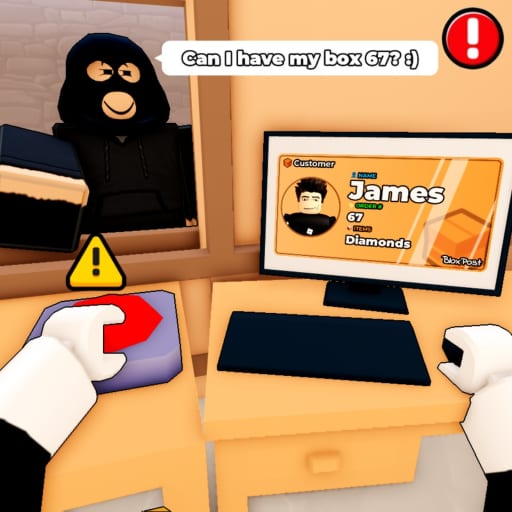
Build a fixed checklist: photo matches NPC, name matches slip, address matches route marker. Use the wiki ID verification checklist until the sequence is muscle memory. Never click approve because the NPC is impatient; Mail or Jail punishes lazy approvals harder than slow reading.
Pair verification practice with Shift 1 tips where the tutorial introduces your first mismatches and first thief.
Delivery confirmations
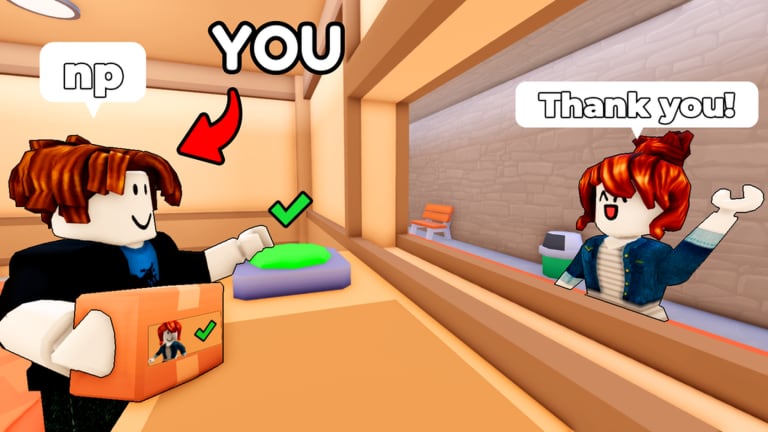
At each house marker, align your character with the doorstep prompt zone. Primary click confirms handoff. Wrong-house deliveries remain one of the most common postal sim failures—on desktop, mis-clicks are rarer but mis-read labels are not. Pause one second to confirm the street name on the package before clicking deliver.
If an event relocates markers or obscures paths, prioritize visible house numbers over minimap assumptions.
Thief arrest inputs
Thief encounters demand fast mouse tracking plus a clean interact press:
- Track the thief with mouse look while strafing with A/D.
- Sprint (Shift) to close distance before they exit the street.
- Primary interact when the arrest prompt appears.
Hesitation lets thieves escape with packages, which stacks mistakes toward firing. Over-aggressive grabs on innocent NPCs can also hurt your run. Verify first when the game blurs thief and customer models during events.
Camera and UI tips for PC
- Lower Roblox graphics slightly if frame drops cause mouse stutter during chases.
- Play in fullscreen or large windowed mode so ID text stays readable.
- Disable unnecessary Roblox core GUI overlays in settings if they cover prompts.
- Bind comfortable keyboard hand position: left hand on WASD, right on mouse with index on click and middle finger near scroll for quick zoom tests.
Mistake tracking while learning
Desktop makes it easy to go fast—and fast wrong. Log errors with the shift mistake tracker during practice runs. Stop a session when you enter the danger zone; continuing sloppy runs trains bad habits that explode on Shift 4 and beyond in the shifts hub.
Session prep
Before long PC sessions:
- Confirm desktop versus mobile differences if you switch devices later.
- Redeem active codes and claim the Delivery Day Studios group (372114481) bonus after liking the game.
- Read event survival tips so you know when to break delivery order safely.
- Browse the Guides hub for macro strategy beyond bindings.
- Check the review page for difficulty expectations on seven-shift clears.
Desktop controls reward precision. Master the ID panel first, then speed up routing. That order keeps you employed through all seven shifts instead of restarting on the fired screen.
Frequently Asked Questions
Quick answers players ask after every shift.
Is Mail or Jail easier on PC?
Many players find ID checks and thief tracking easier with mouse look, but mistakes still fire you. Desktop is an advantage, not a cheat.
What is the most important desktop binding?
Primary interact (left click) handles truck, ID, delivery, and arrest prompts. Learn its range at the cargo ramp before Shift 1.
Should I sprint everywhere on PC?
No. Sprint for thieves and event timers. Walking accurately at house markers prevents mis-clicks on wrong doors.
Where do I learn the full shift flow on PC?
Follow the [full walkthrough](/shifts/full-walkthrough/) after practicing bindings here and [Shift 1 tips](/shifts/shift-1-tips/).